

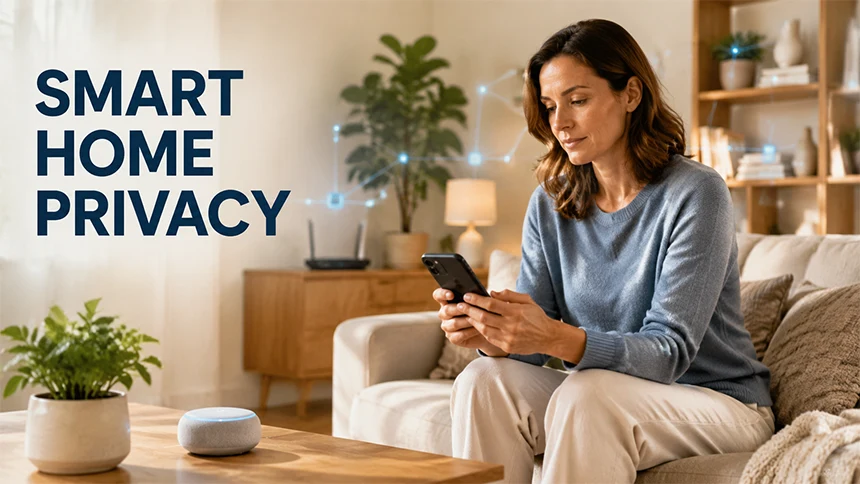
The new smart speaker looks harmless. So does the colour-changing light bulb controlled from your phone, the doorbell camera that sends alerts while you are at work, and the robot vacuum that maps every room in the house.
The problem usually does not begin with one device. It starts when several devices are added over time, each with its own app, account, and connection to your home network.
An old tablet may still be signed in. Any device, from your TV to your heating, door locks, and lighting, can be connected to a single controller through the internet, giving you total control of your home. All these connected devices can make life easier and more enjoyable. But it also comes with a downside. By connecting your home systems to the internet, you’re opening it up to several security risks. Now, to account for these risks, you do not need to become a network engineer, just carefulness and smartness. So next time, before connecting another device, take a few minutes to understand what is already on your network and what each product actually needs.
The Smart Home Gets More Complicated One Device at a Time
What usually happens is that people buy or install smart-home products separately. Maybe the speaker arrives, then smart lights, a streaming device, a thermostat, or a camera. Each new thing feels easier because the app guides you through it.
The real problem starts later. You now have several apps with their own multiple accounts, and a lot of products that connect to the internet every day. Some devices receive regular updates. Others receive very little attention after they are bought.
That does not make every smart product unsafe. It simply means your home becomes harder to manage when you lose track of what is connected.
Start with a basic inventory. Write down each device, the app used to control it, the email account attached to it, and whether you still use it. You may find an old streaming stick in a spare room or a camera that was replaced months ago but never removed from its account.
Knowing what you own is the foundation for making sensible decisions about it.
Start With the Network, Not the Device Box
Now, before you open the next product package, go and check the router that connects to every smart device.
The router’s administrator password must be different from the password used to join the Wi-Fi. These passwords protect different things. So, do not use the same passwords. The Wi-Fi password manages access to the network, while the administrator password controls the router itself.
It’s better for the router to have a firmware update available. Updates can improve performance and fix known security problems. If the router has not been updated for years and the manufacturer no longer supports it, replacing the router may be more practical than trying to improve every device separately.
Look at the connected-device list as well. The names are not always helpful, but the list can still reveal products you have forgotten. A connection called “Android-8F32” might belong to an old phone, a television, or something you do not recognise at all.
If you cannot identify a connection, investigate it before adding anything else. It may be harmless, but guessing is not a useful long-term strategy.
Give Guests and Gadgets Their Own Space
Your work laptop and personal phone should not have the same network as your normal smart devices like the lights or curtains.
Some modern routers give you a guest network. Allowing visitors internet access without placing them on the same part of the network as your personal devices. Some routers offer a completely separate network for smart-home products, often called a guest network.
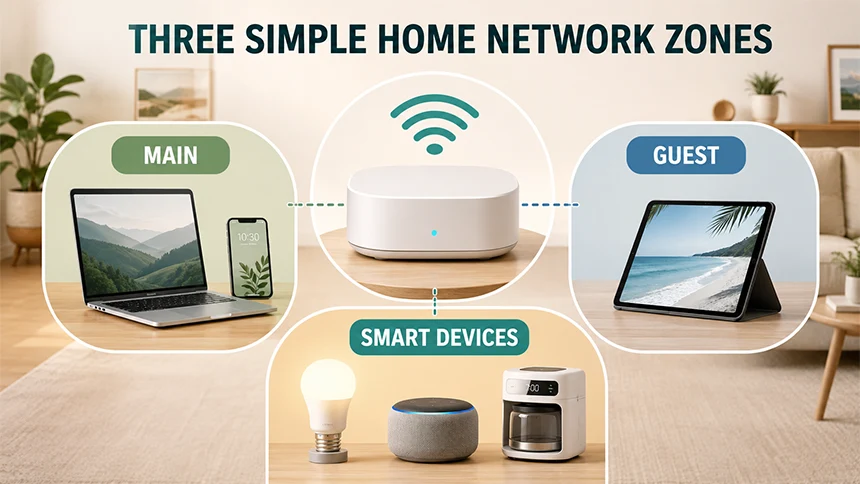
Doing this, the devices’ reach gets very limited. makes troubleshooting easier. As if a smart plug stops working, you can investigate that part of the network without disrupting your laptop, printer, or shared storage.
You do not need to move everything at once. Start with products that have little reason to communicate with your computers. Smart lights, plugs,s and some appliances are sensible candidates. Keep work devices and personal phones on the main network, and use the guest network for visitors who only need internet access.
The exact names and options vary by router, so use the settings your equipment actually supports.
Update the Boring Settings Before Adding More Features
Smart-home apps usually ask you to turn on every available feature. Some are useful. Others collect information or create access that you may never need.
Change default passwords when you create an account. Use a different password for important services, especially for cameras, locks, keys, ks and devices that reveal when someone is home. Turn on multifactor authentication when the app supports it.
Then review permissions. A smart speaker may need microphone access, but why does a lamp need to know your location?. A camera needing notifications is understandable, but a simple temperature sensor does not need to access your contacts.
Get rid of old users and shared accounts as well. When a family member, tenant,t or service provider no longer needs access, delete the permission rather than leaving it active.
Check whether the device is still receiving software updates. A product that no longer receives support may continue to work, but it deserves more caution before being given access to the main network.
When You Manage Your Home From Away, Check the Connection Too
The situation changes a little when you add remote access. Checking a delivery camera from a hotel, changing the thermostat before returning home, or unlocking a door for a neighbour all require you to sign in from a network you may not control.
Hotel Wi-Fi, airport networks, and cafés are convenient, but the network to be trusted cannot be confirmed by just its name. So, before using it, confirm the correct network with staff, avoid automatic connections, and keep your phone and laptop updated.
A VPN can add privacy to the connection between your device and the VPN provider when you are using an unfamiliar network. It is one useful layer, not a replacement for strong passwords, multifactor authentication, or updated smart-home software.
It also cannot protect you from entering your login details into a fake app or website. The safest approach is to combine a secure connection with careful sign-in habits.
Test the Setup Before You Trust It
You can find many problems with a short, ordinary test.
Ask a family member to connect to the guest network. Confirm that they can browse the internet but cannot see shared folders, printers, or other private devices. Then switch your phone to mobile data and open the apps you use to manage your home. Check whether the sign-in prompt, notifications, and camera feed behave as expected.
To check whether an app will behave differently or not if connected to an another conntection v=you can you an free VPN. The goal is not to create a complicated experiment. You are checking whether the device remains usable and whether the account alerts you when a new sign-in occurs.
When the test is finished, remove temporary permissions, sign out of test accounts, and delete any sample data you created. A test is only helpful if it leaves your real setup clean.
Build a Monthly Smart-Home Check You Will Actually Do
Smart-home privacy is much easier to maintain when it’s a small household habit instead of a major project.
So from now on, every month, check for router and device updates. Review the list of connected products and remove anything you may no longer use. Look through account activity to look for any unfamiliar sign-ins, and confirm that your recovery email addresses and phone numbers are still current.
When you sell, replace, or give away a device, make sure to reset it properly and remove the manufacturer’s account. You must remove your account history and details from the devices. A safer smart home should still feel comfortable to live in. The goal is not to disconnect every device or turn ordinary maintenance into a technical job. It is to know what is connected, limit what each product can access, ss and make remote control deliberate.
Before bringing home the next smart product, spend a few minutes checking the network and accounts you already have. That small pause can prevent a much larger cleanup later.
Frequently asked questions
What’s Smart Home Data Privacy?
It is about controlling how your personal information is collected, used, shared, and stored. In a smart home context, data collected by devices may include sensitive information such as daily habits, movement patterns within the house, and personal preferences.
What privacy risks are associated with AI in smart home devices?
Risks like Data privacy, Surveillance, Data breaches, User consent, AI algorithms, etc
How to have security in my smart home?
Secure Your Network, Protect Your Router, Enable Multi-Factor Authentication (MFA), Schedule Firmware Updates.