


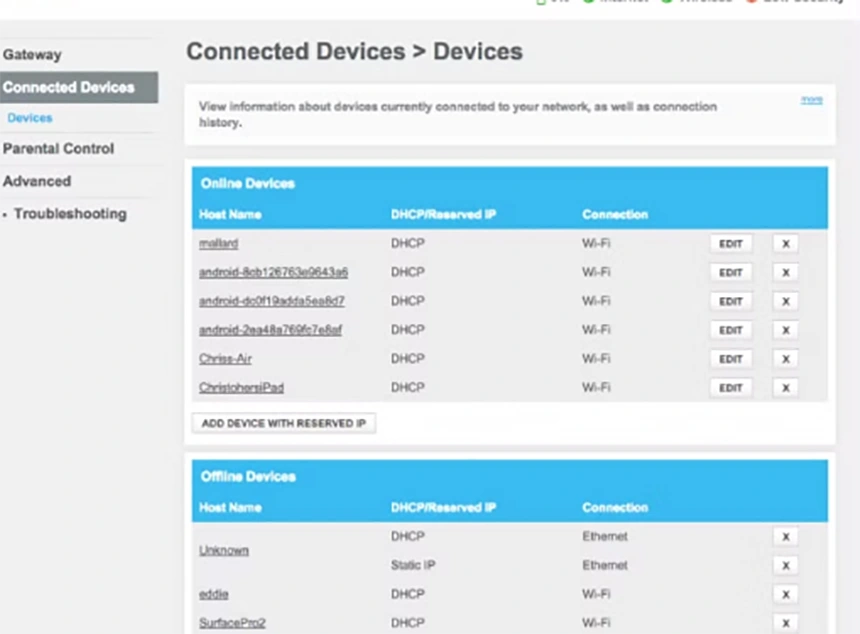
Log into your router. Find the page listing connected devices. Count them.
Most people come up with a bigger number than they expected, and at least two entries they can’t identify at all.
That second part is the problem. A device you can’t name is a device nobody is updating, and the smart home category is full of hardware whose manufacturer quietly stopped caring three years ago.
Here’s how to work through that list properly, and what to do with each thing once you’ve found it.
KEY TAKEAWAYS
- Your router’s connected-devices page is the only complete list of what’s on your network.
- The devices you can’t identify are the ones worth your attention, not the ones you chose.
- Routers have two passwords, and the admin one matters more than the Wi-Fi one.
- Antivirus protects the computers on your network. It does nothing for a smart bulb.
Open the List First
Start with the list, not with a purchase. Everything else depends on it.
Your router’s admin page has a section called something like Connected Devices, Attached Devices, or DHCP Clients. It shows a name, an IP address, and usually a manufacturer for every single thing talking to your network right now.
Some entries will be obvious. Some will read as a string of letters and numbers, which usually means a cheap device that never bothered to introduce itself properly.
Write down everything. Physically, on paper, because you’re about to walk around the house matching entries to objects, and that goes badly on a phone.
Four Buckets, One Afternoon
Every device on that list falls into one of four groups, and sorting them is most of the work.
- Still supported. The manufacturer exists, the app still updates, you used it this month. Fine. Check it’s running current firmware and move on.
- Orphaned. Still working, but the company was acquired, folded, or just stopped shipping updates. This is the bucket that matters, and it’s bigger than most people assume.
- Forgotten. The smart plug behind the sofa running a lamp nobody switches on. You’d forgotten it existed until you found it on the list.
- Shouldn’t be here. A neighbor’s device, an old phone you sold, a guest from eighteen months ago. Remove access.
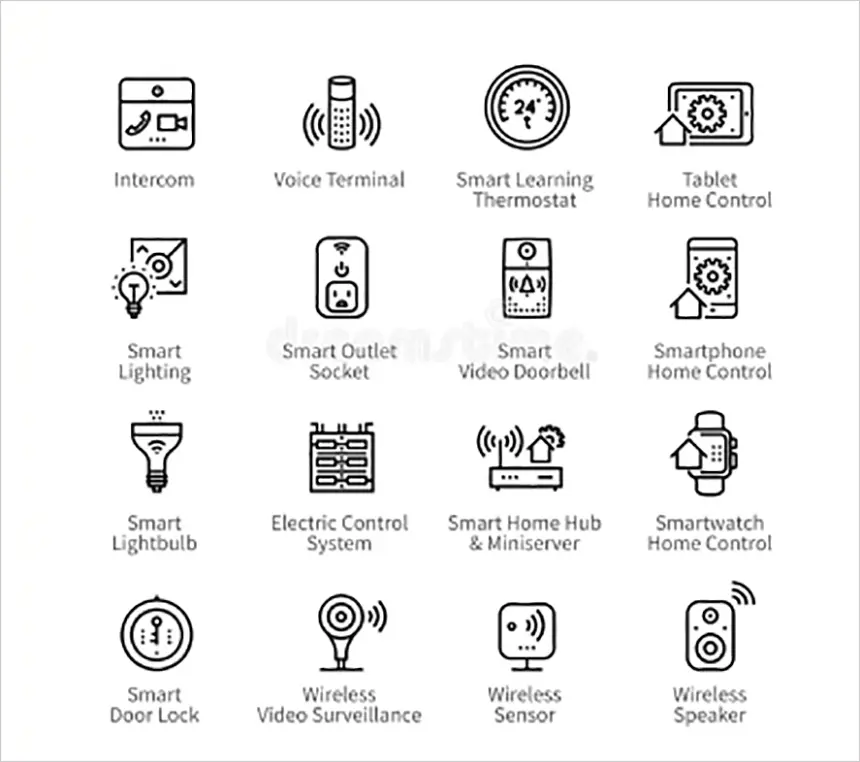
The categories stay the same year to year. What goes in them doesn’t, because new device types keep arriving, which is worth remembering if you’re reading up on the technology trends that can boost the functionality of a connected house.
Two Passwords, Not One
Your router has two passwords, and most households have only ever changed one.
The Wi-Fi password is the one you give visitors. The admin password is the one that gets you into the router’s settings, and it’s frequently still whatever was printed on the sticker.
The Federal Trade Commission is blunt about why that second one matters more. Anyone who gets into the admin side can change every other setting, including the Wi-Fi password, which undoes whatever else you’ve done.
While you’re in there, switch encryption to WPA3 if the router offers it, or WPA2 if it doesn’t. Turn off remote management, WPS and UPnP. And log out when you’re finished, which sounds fussy and isn’t.
What to Look for in the Replacement
Retiring an orphaned device means buying something, and this is where the audit pays for itself.
Ask how long the manufacturer commits to security updates before you ask anything about features. Some publish a support window. Most don’t, and a vendor who won’t answer that question has answered it.
Local control matters too. A device that still works when the company’s servers go dark is a device that can’t be orphaned in the same way. Yourhomify’s rundown of the features all homeowners should look for covers the rest of the buying side.
Move the Cheap Stuff Off Your Main Network
- Most routers can run a guest network with its own name and password.
- Put every cheap connected device on it. Bulbs, plugs, the robot vacuum.
- They can still reach the internet. They just can’t reach your laptop.
Antivirus Covers the Laptops, Not the Bulbs
This part gets muddled constantly, and vendors aren’t in a hurry to clear it up.
Antivirus software runs on computers and phones. Windows, macOS, Android. It scans files, blocks malicious sites and quarantines things it doesn’t like, and it’s genuinely worth having on the machines in your house that hold your actual data.
It does nothing for a smart bulb. There’s no place to install it, and the bulb wasn’t going to download a malicious file anyway.
So if you take a free antivirus trial from one of the security vendors, understand what you’ve bought: protection for the two or three devices on your list that can run software, out of the twenty that can’t. The rest is handled by the firmware and network steps above.
Put It on the Calendar
An audit you do once is a snapshot. The list changes every time somebody gets a present.
Twice a year is enough. Pair it with something you already do seasonally, because a smart homeowner should prioritize preventative maintenance on connected devices for the same reason they do it on a water heater: the failure is cheaper to prevent than to discover.
Fifteen minutes in spring and fall. Open the list, check for new entries, confirm the orphaned pile hasn’t grown.
Conclusion
The thing that makes this worth trying till a whole afternoon is the device you have vowed wasn’t there; it is not exactly the device that you are worried about.
A camera from a brand that no longer exists, still pointing at your hallway, still sitting on the same network as the laptop with your tax returns on it. That’s the scenario, and it’s mundane rather than dramatic, which is exactly why it persists.
Go and count. The number will tell you whether the rest of this applies to you.
FAQs
How do I find every device on my home network?
Ans: Your router’s admin page lists them under Connected Devices or similar. That’s the authoritative list, since it shows anything currently talking to the network, whether you recognize it or not.
What should I do with a device the manufacturer no longer supports?
Ans: Retire it if it handles anything sensitive, like a camera or a lock. For low-risk items like a bulb, moving it to a guest network is a reasonable middle ground.
Is a guest network really worth setting up?
Ans: Yes, and it takes about five minutes. It keeps cheap devices and visitors’ phones away from the computers holding your personal files.
How often should I redo this?
Ans: Twice a year covers most households. Add a check any time a new connected device arrives, since that’s when the list quietly grows.
Federal Trade Commission — common devices connected, from “How To Secure Your Home Wi-Fi Network” (updated June 2026), for the two-password distinction, the WPA3/WPA2 guidance, the remote management, WPS and UPnP advice, and the guest network rationale



Smart-Home Privacy Check to Do Before You Connect a Device
[…] can make life easier and more enjoyable. But it also comes with a downside. By connecting your home systems to the internet, you’re opening it up to several security risks. Now, to account for these […]